

How To Set Up or Edit Your InfoWest Router
Using the InfoWest Connect Plus App:


Step 1:
DOWNLOAD THE APP
Open the App Store (Apple or Google Play), search for "InfoWest Connect Plus," and download the app.
Step 2:
CREATE A NEW ACCOUNT
Open the InfoWest Connect Plus app, tap "Let's Get Started," create an account with your information, and follow any prompts to verify it.
Step 3:
CHOOOSE SETUP OR REPLACE
Once logged in, select the option for "Setup Router" or "Replace Router", depending on your needs.
Step 4:
SCAN QR CODE OR ENTER ROUTER INFO MANUALLY
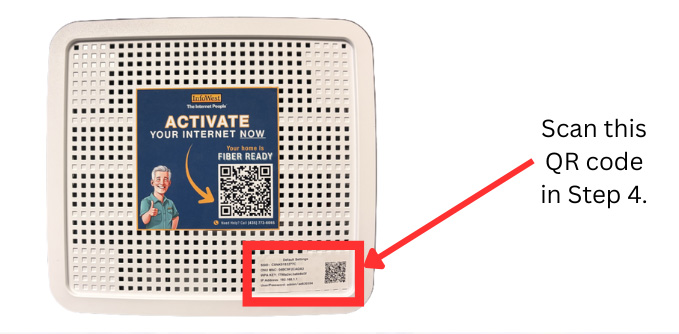
You'll be prompted to connect your router by scanning the QR code on your InfoWest router or entering the information manually.
Step 5:
ACCESS MY NETWORK
After connecting your router, tap on "My Network" in the app menu.
Step 6:
SELECT INTERNET CONNECTION (PRIMARY)
Under "My Network", locate and tap on "Internet Connection (primary)"
Step 7:
EDIT NETWORK SETTINGS
Tap "Edit" in the Internet Connection section.
Step 8:
ENTER NEW NETWORK NAME AND PASSWORD
You'll see options to enter your new Network Name (SSID) and Password. Type in your desired network name and a secure password.
Step 9:
SAVE CHANGES
Once you've entered your new network details, tap "Save" to apply your changes.
Step 10:
CALL TECH SUPPORT
If you ever have any questions, feel free to contact our tech support team at 435-674-0165, EXT 2.